- systematic review workspace
- 4 min read
- By George Burchell
- View publications on PubMed
- ORCID
Saving your SRT work: browser drafts, exports, and backups
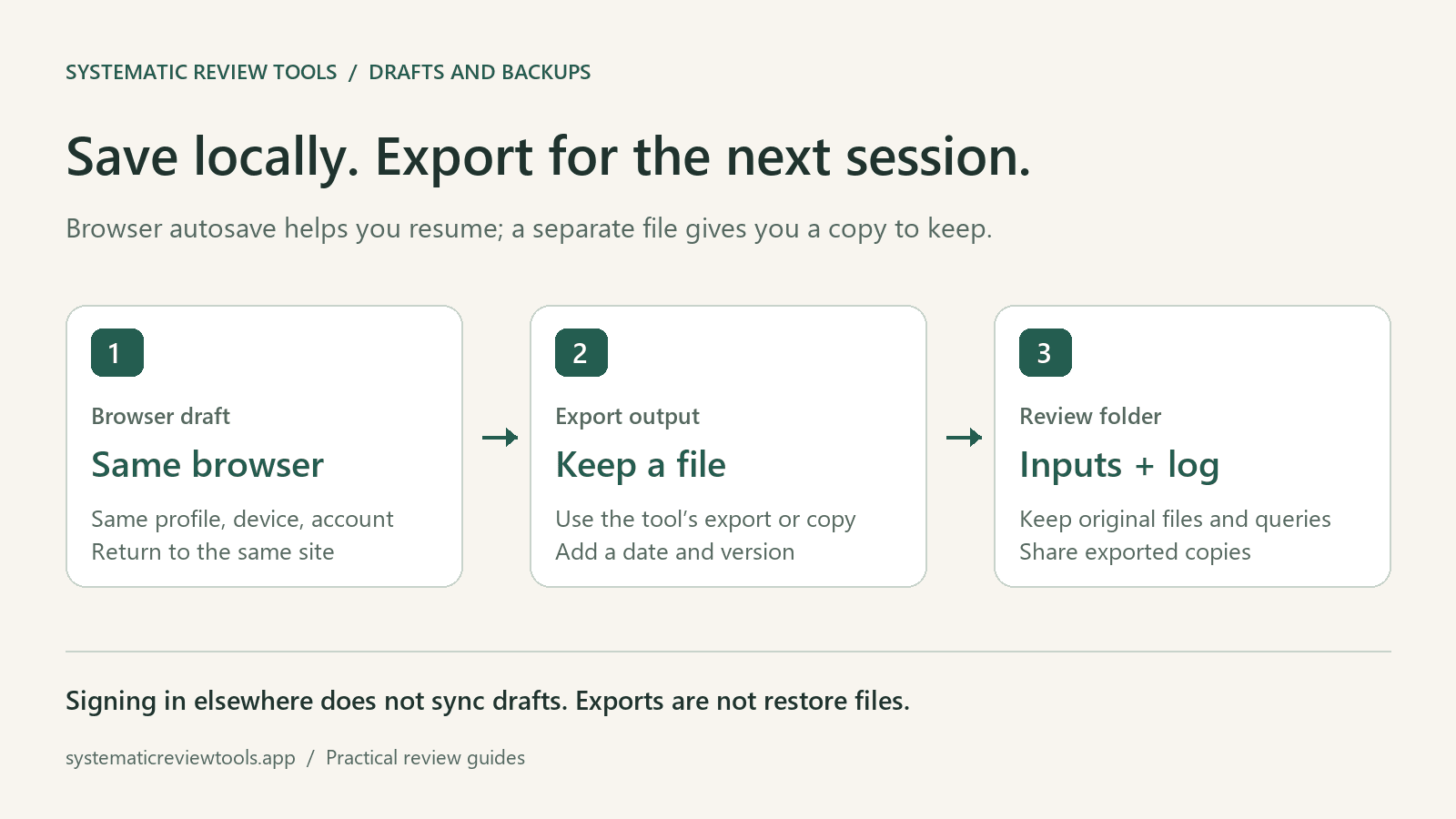
Several SystematicReviewTools.app tools save drafts in your browser for your signed-in account: Search Builder, Research Gap Finder, Manuscript Outline, PRISMA Checklist, and PRISMA Flowchart. To resume, return using the same account, browser profile, device, and site address. Signing in on another computer does not bring these drafts with you. Export useful outputs into your review folder before switching devices or clearing browser data. Here is what saves, what to keep separately, and a concrete way to pause and resume a review session.
What each tool keeps
| Tool | Browser draft | Keep a separate copy |
|---|---|---|
| Search Builder | Question, aspects, search blocks, database selection, filters, and selected aspects | Download text, CSV, or JSON; keep the final query and search date |
| Research Gap Finder | Workspace state, including scope, citations, classifications, map settings, and gap decisions | Export Markdown or Word; retain original citation files and search records |
| Manuscript Outline | Section answers and outline content | Keep the Word export with your manuscript files |
| PRISMA Checklist | Checklist entries for the main and abstract checklists | Export PDF or Word |
| PRISMA Flowchart | Settings and identification, screening, and inclusion counts | Export PDF, PNG, or SVG when ready; keep the underlying count log |
These drafts use browser local storage scoped to your Firebase user account. They help you continue on the same browser; they are not an account-wide cloud backup or a shared team workspace.
The Search Block Library is a shared catalog, not a personal collection of saved review strategies. Inspecting or copying a library block does not create a separate cloud-saved copy for your review.
A pause-and-resume example
Suppose you are building a search for a review of continuous glucose monitoring in adults with type 2 diabetes.
- Sign in and open Search Builder. Enter the question, select the concepts you need, and make the search blocks.
- Review and edit the terms. The Builder saves its draft on this device as you work.
- Before pausing, use Download to keep a text copy of the strategy. Give it a versioned name, such as
cgm-search-2026-09-30-v1.txt, and record the database and any filters in your search log. - Next session, use the same browser profile and account to reopen Search Builder. The stored question and blocks are read back into the tool.
- After revising the search, export a new version rather than overwriting your only saved copy.
Keep the review question or review ID in the file name or accompanying log. Browser autosave keeps the current tool draft; it is not a list of named projects or a history of every edit. Starting over or resetting a tool can replace or clear that current draft.
What to save before leaving other tools
For Deduplication, download the RIS and audit reports when the result is ready. The bibliography upload and generated archive are not stored as a saved review workspace. Keep the original database exports too, so the run can be traced or repeated.
For Search Translator, copy the translated query into your search log along with the source query and target database. Do not assume the translator output will be restored as a saved draft.
An export is an output you can retain, read, and share. It does not necessarily contain everything needed to restore an editable SRT workspace, and these formats are not a promise of one-click draft import. Keep the original inputs and your review log alongside them.
When a draft may not appear
Before concluding that a draft is missing, check the account, browser profile, device, and site address. A draft made on the live site is separate from one made on a preview deployment or localhost.
Clearing site data, using another browser, or closing a private-browsing session can remove or bypass the stored draft. Signing in elsewhere does not synchronize it. On a shared computer, remember that browser storage remains on that device; signing out is not the same action as clearing site data.
A small end-of-session routine
At a useful stopping point, export the current output, record its date and version, and put it beside the inputs in your review folder. Keep decisions and counts in a separate log rather than relying on the latest browser draft to explain what changed.
The Quick Start Guide shows the wider sequence of tools. For one specific handoff, see moving deduplication counts into a PRISMA flowchart. The browser draft makes resuming convenient; your exported files and review log provide the copies you can carry into the next session or share with the team.

About the Author
Connect on LinkedInGeorge Burchell
George Burchell is a specialist in systematic literature reviews and scientific evidence synthesis with significant expertise in integrating advanced AI technologies and automation tools into the research process. With over four years of consulting and practical experience, he has developed and led multiple projects focused on accelerating and refining the workflow for systematic reviews within medical and scientific research.